Showing posts with label GWT4NB. Show all posts

April 30, 2010

Published April 30, 2010 by

Creating GWT Project in NetBeans

If the GWT4NB plugin is already installed just directly follow the steps below, otherwise read GWT4NB : Plugin for Creating GWT Applications in NetBeans first.

1. Go to File | New Project...
2. Select Java Web from Categories and Web Application from Projects; press Next.


3.Give a Project Name, Browse the Project Location; press Next.


4. Select the Server, Java EE Version and write the Context Path; press Next.


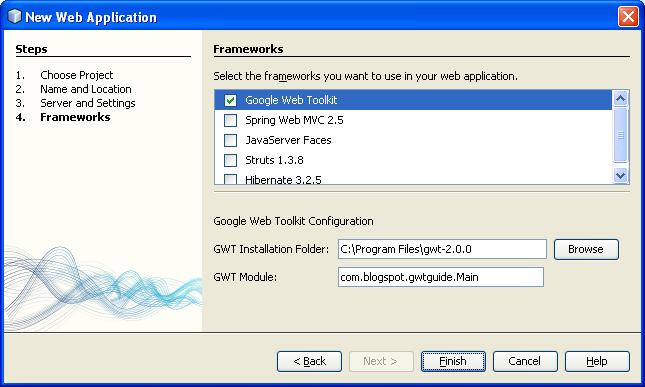
5. Select Google Web Toolkit from Frameworks, Browse GWT Installation Folder, write name for GWT Module; press Finish.


GWT Project is now created.


Read More
Published April 30, 2010 by

GWT4NB : Plugin for Creating GWT Applications in NetBeans

GWT4NB is a support plugin for NetBeans. The GWT4NB project aims to enable developers to take advantage of both: the superior support for creating Web Applications built into the NetBeans IDE and the power of GWT (Google Web Toolkit).

Functionalities provided by GWT4NB includes:

- Using GWT with new or existing web project
- Deployment, running and debugging GWT applications
- Assistance in code editing like creating RPC services.

Go to https://gwt4nb.dev.java.net/ to learn more about this Java tool. This article guides you to setup the plugin in NetBeans.

Download GWT4NB:

For downloading the plugin go to https://gwt4nb.dev.java.net/servlets/ProjectDocumentList?folderID=7081&expandFolder=7081&folderID=0 and download the latest stable version.

Install GWT4NB in NetBeans:

1. Go to Tools | Plugins | Downloaded
2. Click Add Plugins...
3. Open the plugin file which you downloaded earlier. Plugin file name is org-netbeans-modules-gwt4nb.nbm.

4. Then click install.| Next
5. Accept the terms in license agreement and press Install
6. If the Validation Warning is shown press Continue.
7. Press Finish | Close.

After installing the plugin you will get Google Web Toolkit Framework option will be added in the framework list. Now you can start building GWT application in NetBeans easily.
Read More